How to Install llama.cpp on Linux
2026/07/17
DISCLAIMER: I feel ethically obligated to be forthcoming with my bias: I'm a large language model hater for reasons beyond the technology itself. This post will focus on large language models as a tool, disregarding all the other things.
Llama.cpp is an open-source framework for self-hosting LLMs, and it's fairly easy to install on Linux (and maybe macOS) thanks to its pre-compiled binaries. This example runs Qwen3.5 with 9 billion parameters on an old AMD card using Vulkan, hosted on a desktop running Fedora 43. This should work regardless of distro.
If you prefer a video format, these directions are largely regurgitated from this YouTube tutorial.
What you'll need to know
- How much VRAM your graphics card has
- What model you'd like to use
Thanks to advances in model quantization, there is no shortage of different model variants to choose from on HuggingFace and similar sites. The model download page for Qwen3.5 displays a daunting amount of quantized variants under the "Hardware compatibility" pane on the right. Look for one that doesn't exceed your card's VRAM, but also leaves some capacity for the other things your card needs to do.
When you've found a suitable quantization, click the obscure initialism's badge and a side pane will pop out. Click the dropdown in the top right that says "Use this model", and you should find "llama.cpp" as a selection.
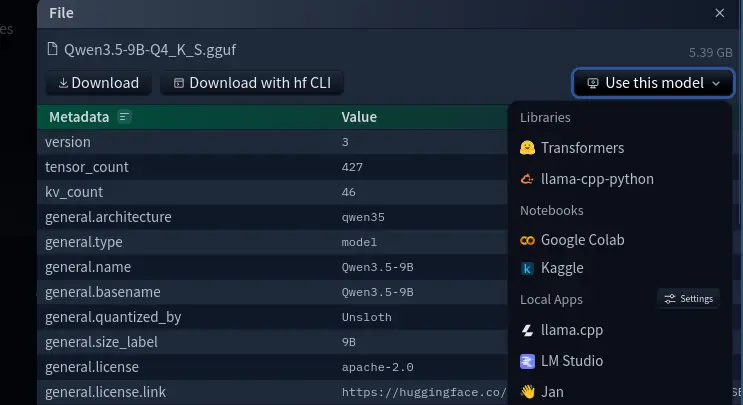
Click that selection and you should be greeted with a dialog. All we need to write down is that model name displayed in the "Run inference directly in the terminal" section (the last word of this command):

Once we have that model name, we're good to go!
Installation
- On the latest Llama.cpp Releases page, find your preferred version.
-
Ubuntu x64 (Vulkan)uses your GPU and should work with any modern AMD or Nvidia card (recommended) -
Ubuntu x64 (CPU)can be used if you just want to use your CPU, which will likely perform worse (I haven't tried this)
Despite it saying "Ubuntu", there isn't anything Debian-specific about this release, and it should work on any distro.
- Move the downloaded file to a suitable installation directory and uncompress it:
tar -xzf llama-b10064-bin-ubuntu-vulkan-x64.tar.gz
-
Create a
run.shfile so we don't have to remember the launch command.
touch run.sh
chmod +x run.sh
-
Open
run.shin a text editor and write in the command to start the server, replacingunsloth/Qwen3.5-9B-GGUF:Q4_K_Swith your selected model:
llama-server -hf unsloth/Qwen3.5-9B-GGUF:Q4_K_S -fa on -ngl 100
The
-fa onargument enabled flash attention.ngl 100specifies that 100 "GPU layers" will be stored in VRAM (I'll be honest; I don't know what this means, but it's required for models using the GPU).
- Run the server:
./run.sh
If everything worked, after some time, you should see a
line directing you to the web interface:
llama_server: listening on
                            http://127.0.0.1:8080
. Navigate to that link in your preferred browser and
you're ready to start prompting!
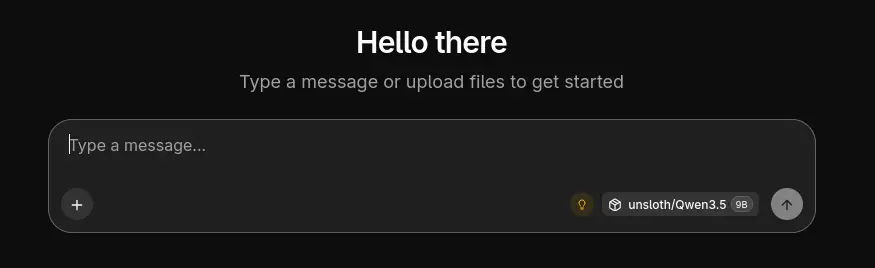
Use Ctrl + C in the terminal to stop the server. Boot it
back up by running that run.sh file.